IFCRM | Using the Marketing Tab
-
1
GO HIGH LEVEL
Marketing Tab Guide
Social Planner — Schedule, Automate & Manage Social Media
Version 1.0 | June 2026 | Provided by Immigration Finder
Platform Go High Level (GHL) Module Marketing > Social Planner Applies To All staff managing social media for the firm Prepared By Immigration Finder OVERVIEW The Marketing tab in Go High Level centralizes your firm's social media management in one place. Through the Social Planner, you can connect all your social accounts, create and schedule posts across multiple platforms simultaneously, set up recurring content, and monitor everything from a single calendar view — without ever logging into each platform separately.
1. CONNECT YOUR SOCIAL MEDIA ACCOUNTS Before scheduling any posts, each social media account must be connected to GHL. This is a one-time setup per account.
1 Access Social Planner Settings
In the GHL left sidebar, click Marketing.
Select Social Planner from the top navigation.
Click + Socials (top right) to connect a new account.
Select the platform you want to connect and follow the authorization steps.
Platform What to Connect Requirements Facebook Facebook Page(s) — not a personal profile Admin access to the Facebook Page Instagram Instagram Business or Creator account Linked to a Facebook Page LinkedIn LinkedIn personal profile and/or Company Page Admin access to the Company Page Google My Business GMB business location(s) Verified GMB listing TikTok TikTok Business account TikTok Business or Creator account IMPORTANT
Social media platform tokens expire periodically (typically every 60-90 days). If posts start failing, reconnect the account under Social Planner > Settings.
2. HOW TO CREATE AND SCHEDULE A POST Opening the Post Composer 2 Start a New Post
Go to Marketing > Social Planner.
Click + New Post (top right corner).
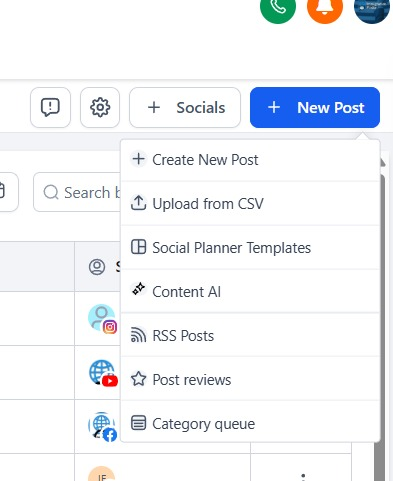
A dropdown menu appears with several options:
Create New Post — opens the full post composer.
Content AI — uses AI to generate post content automatically.
Social Planner Templates — use a pre-built post template.
Upload from CSV — bulk import scheduled posts.
Select Create New Post to open the composer.
Figure 1 — Click + New Post to reveal the options. Select Create New Post to open the composer.
Writing and Scheduling Your Post 3 Use the Post Composer
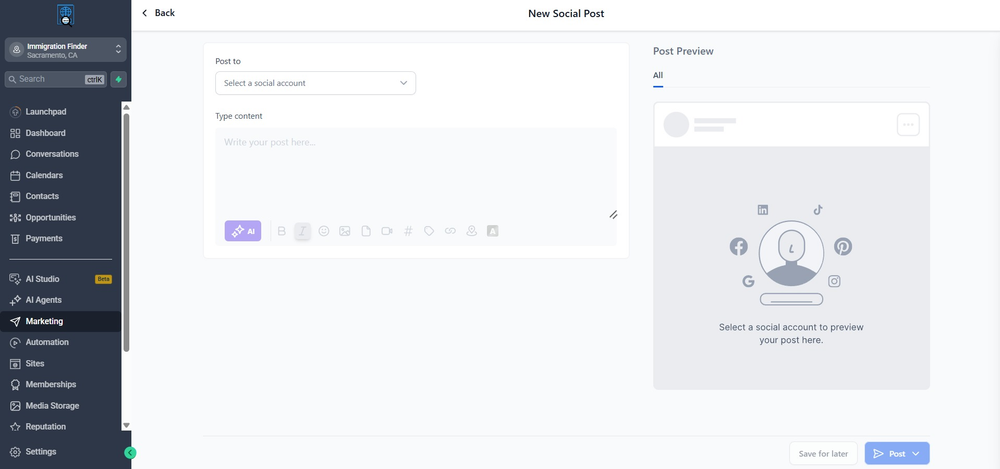
In the Post to field, select the social account(s) you want to post to.
Type your post content in the Type content area.
Use the toolbar below the text area to add: Bold/Italic formatting, Emojis, Images, Video, Hashtags, Links.
Click the AI button (purple) to generate content automatically using GHL's built-in AI.
The Post Preview panel on the right shows how the post will look on each platform.
When ready, click Post to publish immediately, or Save for later to schedule.
Figure 2 — The post composer. Write your content on the left and preview how it looks on each platform on the right.
TIP
For immigration law firms, the best engagement times are Tuesday-Thursday between 9-11 AM and 6-8 PM in your target audience's timezone.
Use the AI button to generate a first draft, then edit it to add your firm's voice and specific case examples.
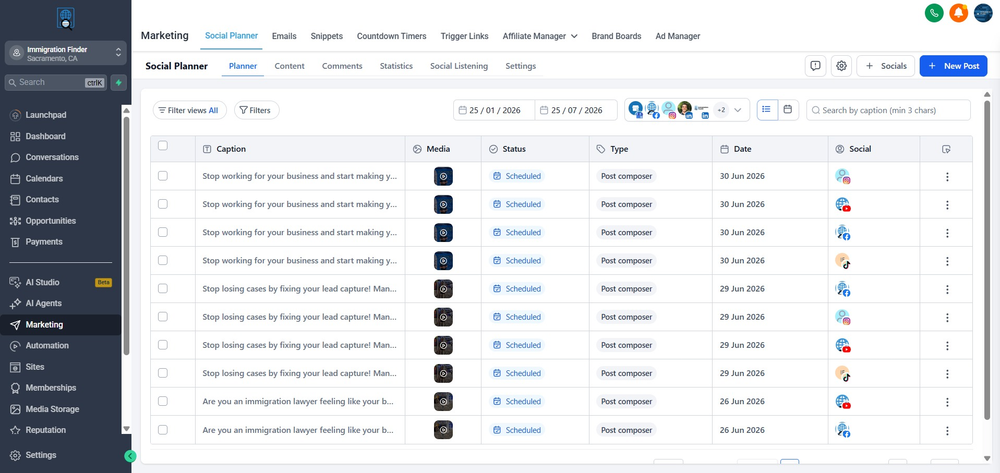
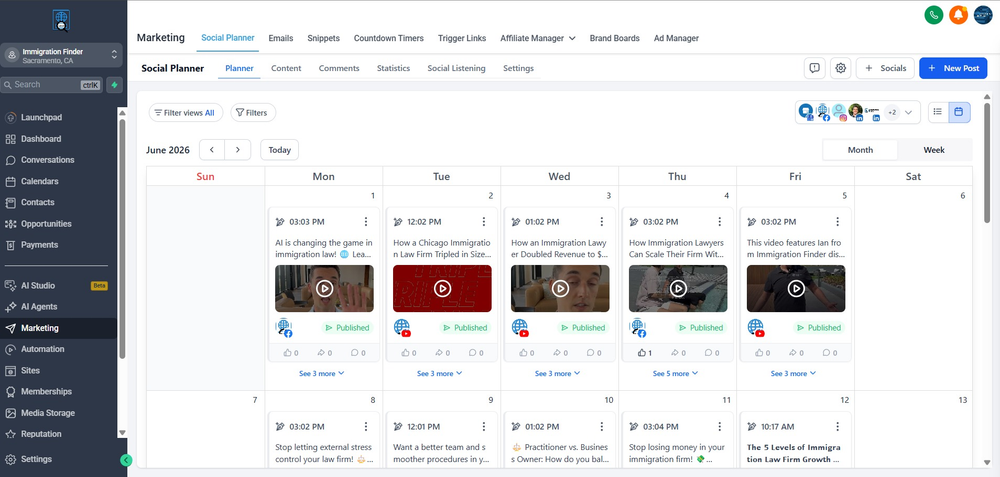
3. MANAGING YOUR CONTENT — LIST AND CALENDAR VIEWS The Social Planner offers two ways to view your scheduled and published content: List view and Calendar view. Switch between them using the icons in the top-right of the Social Planner screen.
List View — All Posts in Chronological Order Figure 3 — List view shows all posts with caption, status (Scheduled/Published), platform, and date. Use filters to narrow down by platform or date range.
Calendar View — Monthly Overview Figure 4 — Calendar view shows posts by date. Click any post to edit, reschedule, or delete it. Green 'Published' badges confirm successful posts.
View Best For How to Switch List View Reviewing all upcoming posts, checking status, bulk actions Click the list icon (☰) in the top-right of the Social Planner Calendar View Spotting gaps in your schedule, visual planning by week or month Click the calendar icon next to the list icon in the top-right 4 Edit, Reschedule, or Delete a Post
In List view: click the three-dot menu (⋮) next to any post to edit, reschedule, or delete.
In Calendar view: click directly on a post to open its options.
Published posts cannot be edited in GHL — changes must be made directly on the social platform.
To reschedule: open the post and change the date and time, then save.
4. RECURRING POSTS — AUTOMATE EVERGREEN CONTENT Recurring posts allow you to schedule evergreen content that automatically republishes on a defined schedule — daily, weekly, monthly, or yearly. Ideal for weekly legal tips, monthly consultation reminders, or annual event announcements.
5 Set Up a Recurring Post
Open the post composer (+ New Post > Create New Post).
Write your content and select the target platform(s).
In the scheduling section, look for the Recurring option and toggle it ON.
Set the frequency: Daily, Weekly, Monthly, or Yearly.
Set the start date, end date (or no end date), and time of day.
Click Schedule Post to activate the recurring series.
The parent post appears in the Content tab. Individual instances appear in the Calendar.
Content Type Suggested Frequency Example for Immigration Firms Weekly legal tip Weekly — every Monday 'Did you know? DACA recipients can apply for Advance Parole to travel abroad.' Monthly consultation CTA Monthly — 1st of month 'New month, new beginnings. Book a free immigration consultation this month.' Office hours reminder Weekly — every Friday 'Our office is open Mon-Fri, 9 AM – 5 PM. Call us or book online.' Know your rights Weekly or bi-weekly 'You have the right to remain silent during an ICE encounter. Share this.' Annual event reminders Yearly — fixed date 'DACA renewal season is here. Start your renewal early to avoid gaps in status.' IMPORTANT
Editing the parent post updates ALL future instances in the series. If you only want to change one specific post, edit it from the Calendar view, not from the Content tab.
5. SOCIAL PLANNER TABS — WHAT EACH ONE DOES Tab What You Can Do There Planner Your main view — List and Calendar of all scheduled and published posts Content Manage recurring post series and saved drafts Comments View and respond to comments across all connected social platforms from one place Statistics Track impressions, engagement, reach, and follower growth per platform Social Listening Monitor mentions, keywords, and brand activity across social platforms Settings Connect/disconnect social accounts, configure hashtag groups, manage team access 6. TROUBLESHOOTING — COMMON ISSUES Problem Likely Cause Fix Post shows Failed status Platform connection expired or post violated platform policy Check the error on the failed post. Go to Settings and reconnect the account. Reschedule the post. Platform not appearing in composer Account not connected or connection expired Go to Marketing > Social Planner > + Socials and reconnect the platform. Images not uploading File format or size not supported Use JPG or PNG under 10MB. Use MP4 under 512MB for video. Recurring post not publishing Parent post was deleted or account was disconnected Check the Content tab to confirm the parent post exists. Reconnect the social account if needed. Post published at wrong time Timezone mismatch in GHL settings Go to Settings > Business Profile and confirm the sub-account timezone is set correctly. AI content not generating Feature temporarily unavailable Refresh the page and try again. Contact your Immigration Finder account manager if it persists. 7. SOCIAL PLANNER SETUP CHECKLIST INITIAL SETUP □ All firm social accounts connected under + Socials □ Facebook Page connected (not personal profile) □ Instagram Business account connected □ LinkedIn Company Page connected □ Google My Business location connected BEFORE EACH POST □ Correct platform(s) selected in the composer □ Content reviewed for character limits per platform □ Media uploaded and confirmed compatible □ Correct date, time, and timezone confirmed □ Post previewed in the Preview panel before scheduling RECURRING POSTS □ Evergreen content identified for recurring schedule □ Recurring frequency and date range set correctly □ Calendar checked to confirm instances are appearing correctly □ Series reviewed monthly to ensure content is still relevant WEEKLY MAINTENANCE □ Calendar reviewed for upcoming scheduled posts □ Any Failed posts identified and rescheduled □ Social account connections checked — reconnect if expired □ New content scheduled for the following week □ Statistics tab reviewed for top-performing posts 8. GLOSSARY — KEY TERMS Term Definition Social Planner The GHL module inside the Marketing tab used to create, schedule, and manage social media posts. Post Composer The screen where you write content, select platforms, add media, and set the publishing schedule. Recurring Post A post that automatically republishes on a set schedule without requiring manual action each time. Parent Post The original post in a recurring series. Editing it updates all future instances. Content AI GHL's built-in AI tool that generates post captions and content from a prompt. List View A chronological list of all scheduled and published posts with status indicators. Calendar View A monthly calendar showing posts by date — useful for spotting gaps in your schedule. Failed Post A post that was scheduled but did not publish due to a platform error or expired connection. Evergreen Content Content that remains relevant over time — suitable for recurring posts. Statistics Tab The Social Planner analytics section showing impressions, reach, engagement, and follower growth. Provided by Immigration Finder | GHL Marketing Tab Guide v1.0 | June 2026 | Questions? Contact your Immigration Finder account manager.