IFCRM | Agreements and Invoicing
-
1Agreements and Invoicing
GO HIGH LEVEL
Agreements & Invoicing
Contracts, Invoices & Automated Client Onboarding
Version 1.0 | June 2026 | Provided by Immigration Finder
Platform Go High Level (GHL) Modules Payments > Documents & Contracts / Invoices + Workflows Applies To All staff managing client agreements, billing, and onboarding Prepared By Immigration Finder OVERVIEW This guide covers how to use Go High Level to automate your entire client lifecycle — from sending a retainer agreement to collecting payment and triggering onboarding. When set up correctly, GHL automatically sends a contract when a client reaches the right pipeline stage, generates an invoice the moment the contract is signed, and moves the client into onboarding the moment payment is confirmed.
1. STEP 1 — THE PIPELINE The pipeline is the foundation of the entire automation. Each stage represents a step in your client lifecycle. Moving a contact from one stage to another is what triggers the automated workflows.
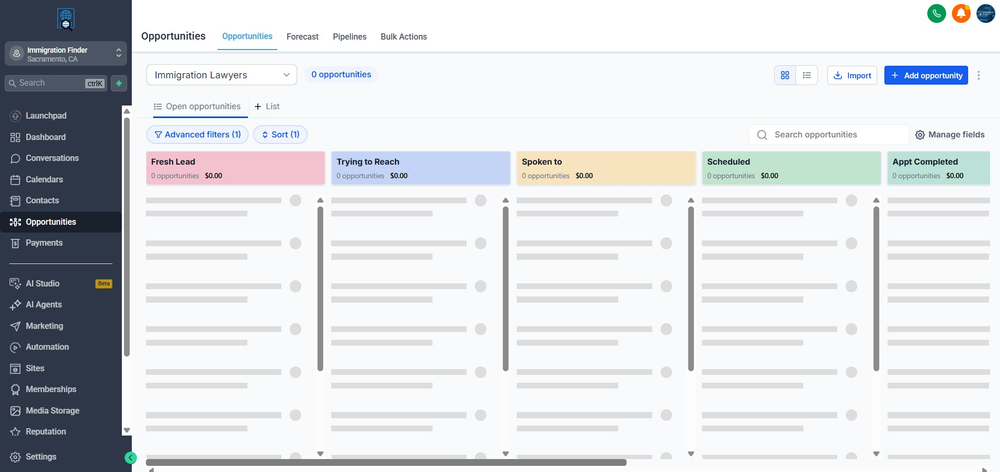
Recommended Pipeline Stages Pipeline Stage What Happens Here Automation Triggered? New Lead Contact enters the pipeline. Initial qualification. Optional — welcome email Send Contract Client has verbally agreed. Contract needs to be sent. YES — Contract Sent workflow fires Contract Sent Waiting for client to sign the agreement. No — waiting stage Contract Signed Client has signed. Invoice should be generated. YES — Invoice workflow fires Invoice Sent Waiting for payment. No — waiting stage Invoice Paid Payment confirmed. Client ready for onboarding. YES — Onboarding workflow fires Onboarding Active client being onboarded to the service. YES — Onboarding email sequence Active Client Client is fully onboarded and receiving the service. No Offboarding Service ending. Final emails and pipeline cleanup. YES — Offboarding workflow fires Figure 1 — The Opportunities pipeline board. Each column is a stage. Drag cards to move clients forward and trigger automations.
2. STEP 2 — CREATE CONTRACT TEMPLATES Templates are reusable agreement documents. Create one per service type so workflows can send the correct agreement automatically without any manual customization each time.
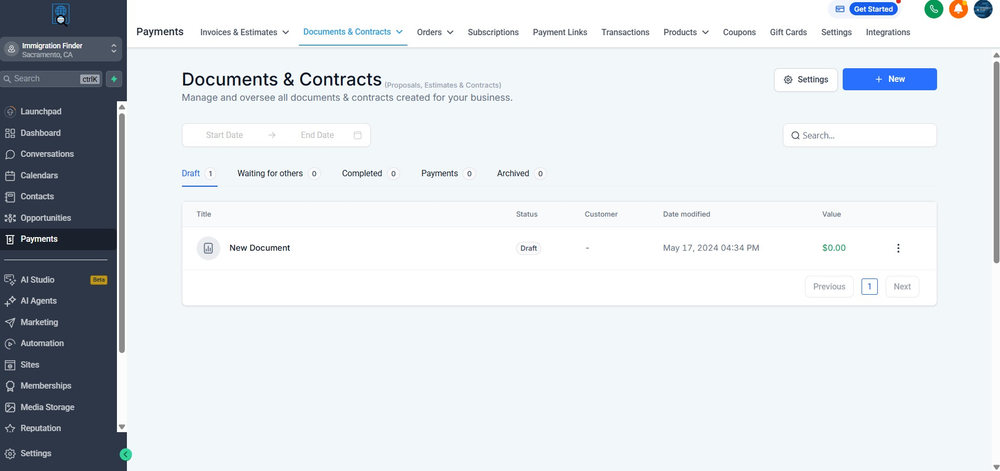
Payments > Documents & Contracts 1 Access Documents & Contracts
Go to Payments in the left sidebar.
Click Documents & Contracts in the top navigation.
Here you will see all existing documents with their status: Draft, Waiting for Others, Completed.
Click + New to create a new contract template.
Figure 2 — Payments > Documents & Contracts. All contracts and their current status are listed here.
2 Build the Contract Template
Name the template clearly by service type, e.g.: 'Retainer Agreement — Initial Consultation'.
Build the contract content using the document editor — add terms, scope of work, and fee schedule.
Insert Signature Fields for the client and your firm.
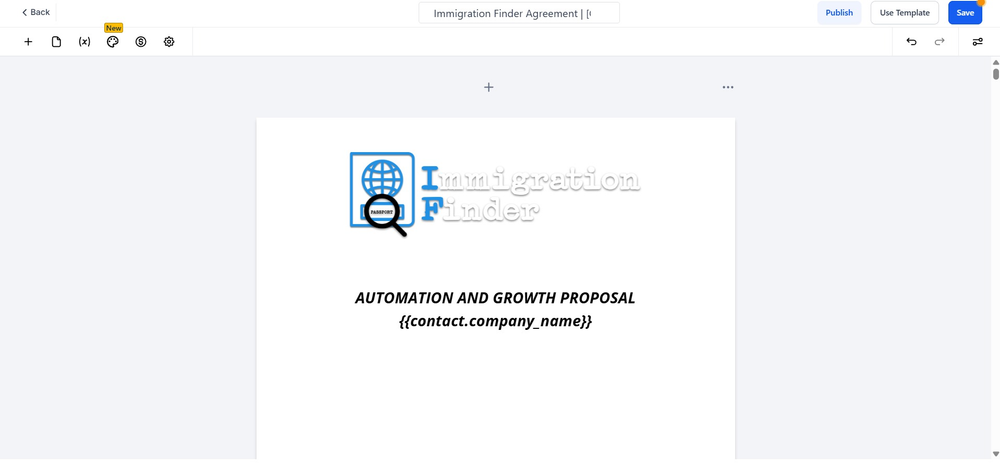
Use merge tags like {{contact.company_name}} to auto-populate client details.
Figure 3 — The contract editor. Use merge tags (e.g. {{contact.company_name}}) to personalize each agreement automatically.
3 Add a Product List and Configure Payment Settings
Click Add Product List inside the template editor.
Select the product or service from your GHL catalog — this links the contract to an invoice.
Configure the three payment toggles:
Setting ON OFF Direct Payment Client redirected to invoice payment page immediately after signing. No redirect. Invoice sent by email separately. Send Invoice Invoice automatically emailed to client when generated. Invoice saved as draft. You send it manually. Auto-Payment For recurring invoices: client's card charged automatically each cycle. Client manually pays each invoice. IMPORTANT
Do not use a live payment gateway for testing. Use your gateway's test mode before going live with real clients.
3. STEP 3 — CREATE INVOICE TEMPLATES GHL's Invoice module lets you create one-time or recurring invoice templates that can be triggered manually or through workflows.
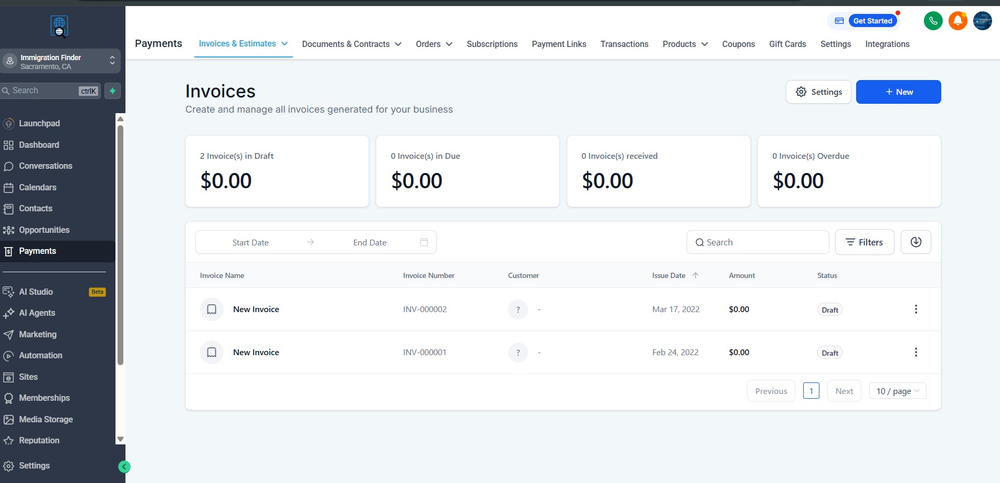
Payments > Invoices & Estimates 4 Access and Create Invoices
Go to Payments > Invoices & Estimates.
Click + New to create a new invoice.
Add your business information, select the client contact, and add products or services.
Set the billing frequency for recurring invoices using the 'How often?' dropdown.
Figure 4 — Payments > Invoices & Estimates. View all invoices by status: Draft, Due, Received, Overdue.
Frequency How It Works Best For One-time Single invoice generated at signing. Client pays once. Initial consultation fees Monthly Invoice generated and sent automatically every month. Monthly retainers, ongoing case management Installments Invoice split into multiple payments on a schedule. Payment plans for larger retainer fees Annual Invoice generated once per year on the same date. Yearly renewals, annual memberships NOTE
Recurring invoices created through a signed contract are managed separately from standalone recurring invoices. Both appear in Payments > Invoices & Estimates.
4. STEP 4 — BUILD AUTOMATION WORKFLOWS Workflows connect your pipeline, contracts, invoices, and onboarding into a single automated sequence. You need four core workflows.
Workflow A — Contract Sent (Triggered by Pipeline Stage Change) 5 Build the Contract Sent Workflow
Go to Automation > Workflows > + New Workflow > Start from Scratch.
Set the Trigger: Opportunity Stage Changed.
Configure filter: Pipeline = [Your Pipeline], Stage = 'Send Contract'.
Add Action: Send Documents & Contracts — select the correct template.
Add Action: Change Opportunity Stage → move to 'Contract Sent'.
Save and Publish.
Workflow B — Contract Signed (Triggered by Document Status) 6 Build the Contract Signed Workflow
Set the Trigger: Document/Contract Status Changed = 'Signed and Accepted'.
Add Action: Change Opportunity Stage → 'Contract Signed'.
Add Action: Send Invoice — select the invoice template for this service.
Add Action: Send Internal Notification — alert your team that a contract was signed.
Save and Publish.
Workflow C — Invoice Paid (Triggered by Payment Confirmation) 7 Build the Invoice Paid Workflow
Set the Trigger: Invoice Status Changed = 'Paid'.
Add Action: Change Opportunity Stage → 'Onboarding'.
Add Action: Send Email — welcome email with next steps for the client.
Add Action: Add Tag — tag the contact as 'Active Client'.
Save and Publish.
Workflow D — Offboarding 8 Build the Offboarding Workflow
Set the Trigger: Opportunity Stage Changed to 'Offboarding'.
Add Action: Remove Tag — remove the active service tag.
Add Action: Send Email — service completion email with review request.
Add Action: Change Opportunity Stage → 'Closed Won' or remove from pipeline.
Save and Publish.
TIP
Once you have built all four workflows for one service, duplicate them for each additional service type. Update only the template references, tags, and stage names in the duplicate.
5. THE COMPLETE AUTOMATED FLOW AT A GLANCE Step Action Who Does It GHL Module 1 Contact added to pipeline at New Lead stage Staff Opportunities 2 Contact moved to Send Contract stage Staff Opportunities 3 Contract sent automatically GHL (automatic) Workflows + Documents 4 Client signs the agreement Client Documents & Contracts 5 Invoice generated and sent automatically GHL (automatic) Workflows + Payments 6 Client pays the invoice online Client Payments 7 Onboarding triggered — welcome email sent GHL (automatic) Workflows 8 Service delivered. Staff moves to Offboarding Staff Opportunities 9 Farewell email sent, pipeline cleaned up GHL (automatic) Workflows 6. TROUBLESHOOTING — COMMON ISSUES Problem Likely Cause Fix Contract not sent when stage changes Workflow not published or trigger misconfigured Check the workflow status is Published. Confirm pipeline and stage names match exactly. Invoice not generated after signing No Product List added to the contract template Edit the template and add a Product List. Without it, no invoice is created automatically. Client not redirected to pay after signing Direct Payment toggle is OFF in the template Edit the template and turn Direct Payment ON. Confirm payment gateway is connected. Recurring invoice stops after first payment End condition set to 1 occurrence or Auto-Payment is OFF Review invoice frequency settings and end condition. Enable Auto-Payment if needed. Onboarding email not sent after payment Invoice Paid workflow not published Open the Invoice Paid workflow, confirm it is published, and review the trigger filter. 7. SETUP CHECKLIST PIPELINE □ Pipeline created with all required stages □ Stage names are consistent with workflow trigger names CONTRACT TEMPLATES □ One contract template created per service type □ Signature fields added for client and firm □ Product List added to link contract to invoice □ Direct Payment, Send Invoice, and Auto-Payment configured □ Template tested with a test contact INVOICE TEMPLATES □ Invoice templates created for standalone billing needs □ Recurring frequency and end conditions set correctly □ Payment gateway connected and tested WORKFLOWS □ Workflow A: Contract Sent — Published □ Workflow B: Contract Signed — Published □ Workflow C: Invoice Paid — Published □ Workflow D: Offboarding — Published □ All workflows tested with a test contact before going live 8. GLOSSARY — KEY TERMS Term Definition Documents & Contracts The GHL module for creating, sending, and managing digital agreements that clients sign electronically. Contract Template A reusable agreement document in GHL that can be sent automatically through workflows. Product List A section in a contract template that links services and pricing to an invoice — triggers auto invoice generation on signing. Direct Payment A contract setting that redirects the client to the invoice payment page immediately after signing. Auto-Payment Saves the client's card and automatically charges future recurring invoices. Recurring Invoice An invoice generated and sent on a set schedule until the cycle ends. Workflow An automated sequence of actions in GHL triggered by a specific event. Opportunity A GHL record representing a potential or active client deal within a pipeline. Onboarding Workflow Triggered when invoice is paid — sends welcome emails, assigns tasks, tags contact as active. Offboarding Workflow Triggered when service ends — removes tags, sends final emails, cleans up the pipeline. Provided by Immigration Finder | GHL Agreements & Invoicing Guide v1.0 | June 2026 | Questions? Contact your Immigration Finder account manager.