IFCRM | How to Use Contacts and Opportunities
-
1How to use contact and opportunities
GO HIGH LEVEL
Contacts & Opportunities
Managing Leads, Client Records & Pipeline
Version 1.0 | June 2026 | Provided by Immigration Finder
Platform Go High Level (GHL) Modules Contacts + Opportunities Applies To All staff managing client records, leads, and pipeline Prepared By Immigration Finder OVERVIEW This guide covers how to use the Contacts and Opportunities modules in Go High Level to manage your immigration law firm's leads and active clients. Contacts is your client database. Opportunities is your visual pipeline — the tool you use to track where each lead is in the process, from first contact to active client.
1. CONTACTS — YOUR CLIENT DATABASE Every person who interacts with your firm lives in the Contacts module. New leads from your website, ads, or phone calls are automatically created as contacts. All communications — calls, texts, emails — are logged in their profile automatically.
Navigating the Contacts Page 1 Access and Navigate Contacts
Click Contacts in the left sidebar.
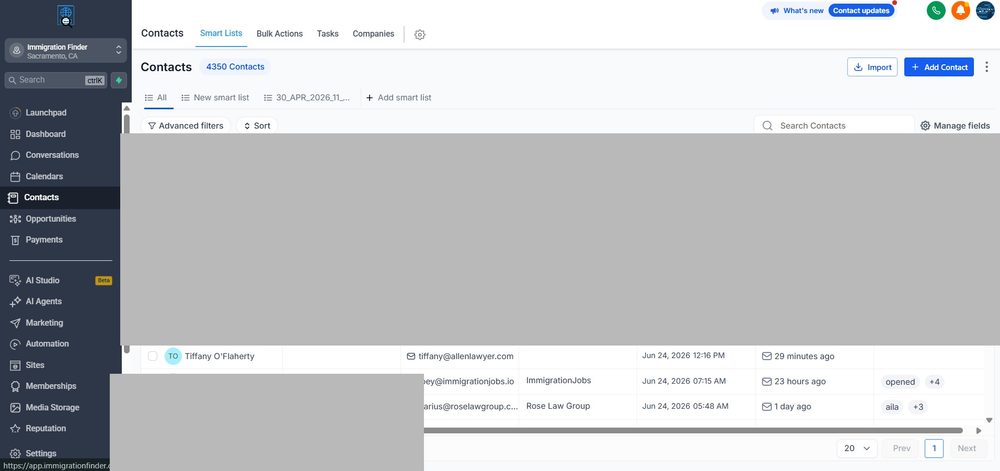
The Contacts page shows all your contacts in a sortable list.
Use Smart Lists to filter contacts by segment — e.g., all DACA leads, all active clients, all uncontacted leads.
Use Advanced Filters to create custom views by tag, date, status, or any custom field.
Click any column header to sort by that field.
Use the Search bar to find a specific contact instantly by name, email, or phone.
Figure 1 — The Contacts page. Smart Lists (top) filter your view. Use Advanced Filters and Sort to find exactly the contacts you need.
Adding a New Contact Manually 2 Add a Contact
Click + Add Contact (top right of the Contacts page).
Fill in the contact's details: First name, Last name, Email, Phone, and any custom fields relevant to your firm.
Assign an Owner — the team member responsible for this contact.
Add Tags to categorize the contact (e.g., DACA, Family-Based, Work Visa).
Click Save. The contact is created and ready for follow-up.
NOTE
Most contacts are created automatically — from web forms, ad leads, and phone calls. Manual entry is only needed when adding a contact that did not come through an automated channel.
2. THE CONTACT RECORD — EVERYTHING IN ONE PLACE Clicking on any contact opens their full record. This is the central hub for everything related to that person — their information, communication history, tags, tasks, and pipeline status.
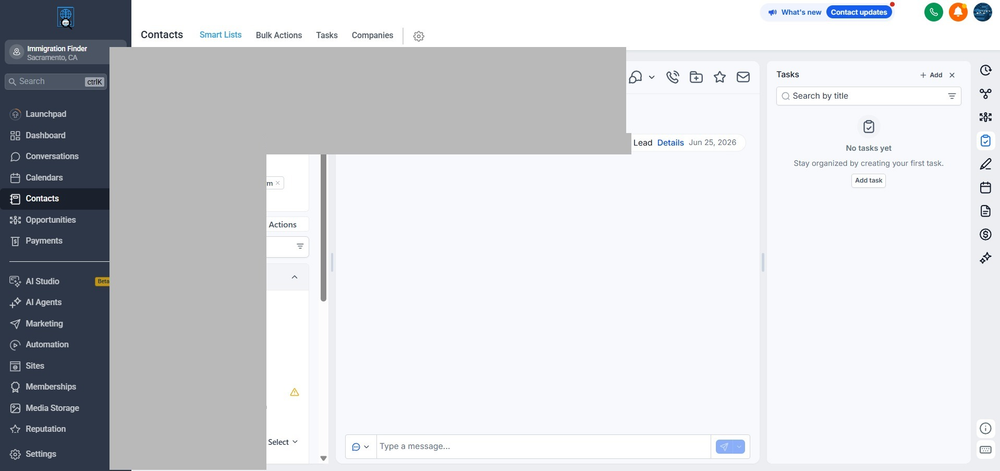
Figure 2 — A contact record. Left panel shows fields and tags. Center shows conversation and activity history. Right panel shows tasks.
Panel What It Contains How to Use It Left — Contact Details Name, phone, email, custom fields, tags, owner, followers Edit any field by clicking it. Add tags by clicking the + next to Tags. Center — Activity Feed All calls, emails, texts, notes, and pipeline activity in chronological order Review what happened in previous interactions before a call or meeting. Right — Tasks Pending tasks assigned to this contact Add tasks for follow-up. Click + Add to create a new task with a due date. Top Toolbar Call, email, add note, book appointment, star the contact Quick actions without leaving the contact record. TIP
Add a note after every call — within 5 minutes while details are fresh. Notes appear in the center activity feed and are visible to all team members.
Use the star icon to mark high-priority contacts. Starred contacts are easy to find using the Smart Lists filter.
3. TAGS AND SMART LISTS — ORGANIZING YOUR DATABASE Tags — Label Every Contact Consistently Tags are labels that categorize contacts. They drive automation, segmentation, and reporting. Inconsistent tags break workflows and make filtering unreliable.
Tag Category Example Tags How They're Used Service type daca, family-based, work-visa, asylum, naturalization Filter contacts by service. Trigger service-specific automations. Lead status fresh-lead, attempted-contact, consultation-scheduled, active-client Track where each lead is without using the pipeline. Source website, facebook-ad, google-ad, referral, walk-in Measure which channels bring the best leads. Outcome qualified, not-qualified, no-answer, wrong-number Segment leads by quality for follow-up prioritization. Language english, spanish, portuguese Trigger bilingual workflows and assign to the right team member. Smart Lists — Save Your Most-Used Filters 3 Create a Smart List
On the Contacts page, click Advanced Filters.
Set your filter criteria — e.g., Tag contains 'daca' AND Created Date is within last 30 days.
Click Save as Smart List and give it a descriptive name.
The Smart List appears as a tab at the top of the Contacts page for one-click access.
NOTE
Recommended Smart Lists for immigration firms: Fresh Leads (today), Uncontacted (no activity in 48 hours), Consultation Scheduled, Active Clients, DACA Renewals.
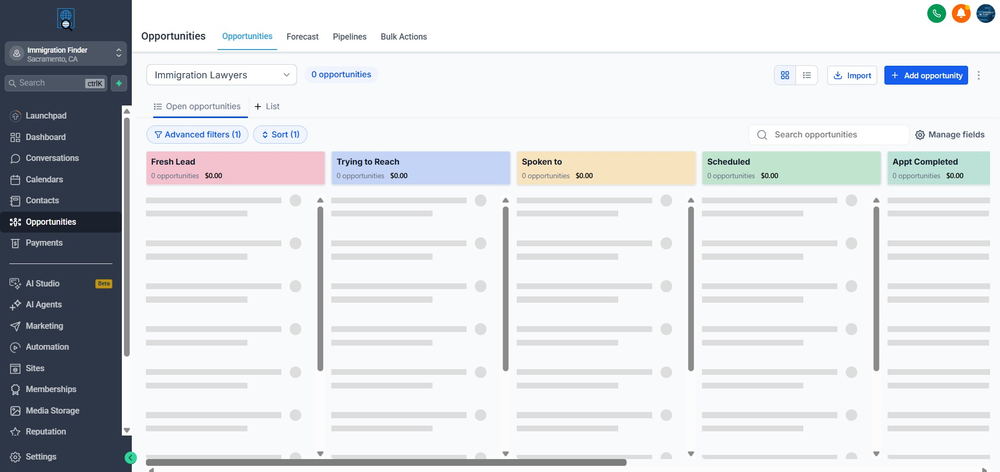
4. OPPORTUNITIES — YOUR VISUAL PIPELINE The Opportunities module is your pipeline board — a visual representation of where every lead is in your process. Each card on the board represents one lead or client. Cards move from left to right as the relationship progresses.
Figure 3 — The Opportunities pipeline board. Each column is a stage. Drag cards left or right to move a lead through the process.
Understanding the Pipeline Board Stage Who Is Here What Needs to Happen Next Fresh Lead New contact just entered — not yet contacted Call or text within the first 5 minutes of receiving the lead Trying to Reach Contacted at least once but no response yet Follow up by call, text, and email on a set schedule Spoken To Had a conversation — needs to schedule a consultation Send booking link or schedule the consultation directly Scheduled Consultation is booked Confirm the appointment 24 hours before. Prepare file. Appt Completed Consultation done — decision pending Send retainer or follow-up within 24 hours of the consultation 4 Move a Lead Through the Pipeline
Click Opportunities in the left sidebar.
Find the lead's card on the board.
Drag the card to the correct stage, OR click the card to open it and change the stage from the dropdown inside.
Moving a card triggers any workflow automation attached to that stage.
5 Add a New Opportunity Manually
Click + Add Opportunity (top right of the Opportunities page).
Search for and select the existing contact.
Choose the pipeline and starting stage.
Add an opportunity name, value (optional), and assigned owner.
Click Save. The card appears on the pipeline board.
TIP
Keep the pipeline current — move cards the same day something changes. A pipeline that is not updated in real time is not useful for reporting or follow-up.
Use the List view (toggle top-right) to see all opportunities in a sortable table instead of the Kanban board.
5. IMPORTING CONTACTS 6 Import Contacts from a CSV File
Click Contacts in the sidebar, then click Import (top right).
Download the CSV template to see the required column format.
Fill in your contact data: first name, last name, email, phone, and any custom fields.
Upload the completed CSV file.
Map the CSV columns to GHL fields — confirm each field matches correctly.
Choose whether to update existing contacts or only import new ones.
Click Import. GHL processes the file and creates or updates the contacts.
IMPORTANT
Always clean your CSV before importing — remove duplicate rows, fix formatting errors in phone numbers (must include country code: +1 for US), and ensure emails are valid.
Importing a CSV with duplicates creates duplicate contacts in GHL. Use the deduplication tool after importing if needed.
6. TROUBLESHOOTING — COMMON ISSUES Problem Likely Cause Fix Contact created with no name Lead came from an ad with only an email or phone Open the contact, click the name field, and add the name manually after the first call. Duplicate contacts in the database Same person submitted multiple forms or was imported twice Go to Contacts > Bulk Actions > Merge Duplicates. Review and merge matching records. Pipeline card not triggering automation Workflow is not published or stage name mismatch Check the workflow trigger stage name matches exactly. Confirm workflow is Published. Tag not appearing as a filter option Tag was never saved — may have been typed incorrectly Go to Settings > Tags to view all saved tags. Retype with exact spelling. Smart List not showing correct contacts Filter conditions are too narrow or field values don't match Open the Smart List filter and review each condition. Test with a broader filter first. CSV import failed Column format incorrect or required fields missing Download and use the GHL import template. Check phone number format includes +1. 7. DAILY WORKFLOW CHECKLIST CONTACTS □ Check Fresh Leads Smart List every morning — respond within 5 minutes of lead arrival □ Add a note after every call or email □ Apply the correct tag after every interaction □ Update the contact's owner if reassigning to another team member OPPORTUNITIES / PIPELINE □ Move cards to the correct stage the same day something changes □ Check the pipeline at the start and end of every day □ Add follow-up tasks for any card that needs action □ Review any cards stuck in the same stage for more than 3 days WEEKLY MAINTENANCE □ Review and merge any duplicate contacts □ Archive or remove contacts that are clearly not leads (wrong number, spam, etc.) □ Review pipeline for stale opportunities — no activity in 7+ days □ Export a weekly contact report for management review if required 8. GLOSSARY — KEY TERMS Term Definition Contact A person in your GHL database — a lead, prospect, or active client. Opportunity A deal or case linked to a contact, placed on the pipeline board to track progress. Pipeline A visual board showing the stages of your client journey. Each column is a stage. Smart List A saved filter in the Contacts module that shows a specific subset of contacts based on defined criteria. Tag A label applied to a contact to categorize them for segmentation, automation, and filtering. Owner The team member assigned responsibility for a specific contact or opportunity. Activity Feed The center panel of a contact record showing all calls, emails, texts, notes, and pipeline changes. Kanban Board The visual grid view of the pipeline, where opportunity cards are arranged in columns by stage. Bulk Actions Tools for performing an action on multiple contacts at once — tagging, emailing, deleting, or merging. Deduplication The process of identifying and merging duplicate contact records in GHL. Provided by Immigration Finder | GHL Contacts & Opportunities Guide v1.0 | June 2026 | Questions? Contact your Immigration Finder account manager.