IFCRM | How to use the Dialer Phone System
-
1How to use the Dialer Phone System
GO HIGH LEVEL
Dialer Phone System
Quick-Start User Guide
Version 1.0 | June 2026 | Provided by Immigration Finder
Platform Go High Level (GHL) Module Dialer / Phone System Applies To All staff handling inbound and outbound calls Prepared By Immigration Finder OVERVIEW The GHL Dialer is a built-in phone system inside Go High Level that lets you make and receive calls, log notes, apply tags, send text messages, and transfer calls — all from one screen. This guide walks you through everything you need to use it confidently from day one.
1. GETTING STARTED — THE DIALER INTERFACE How to Open the Dialer 1 Access the Dialer
Log in to your Go High Level account.
Click the green phone icon in the top-right corner of any screen to open the Dialer.
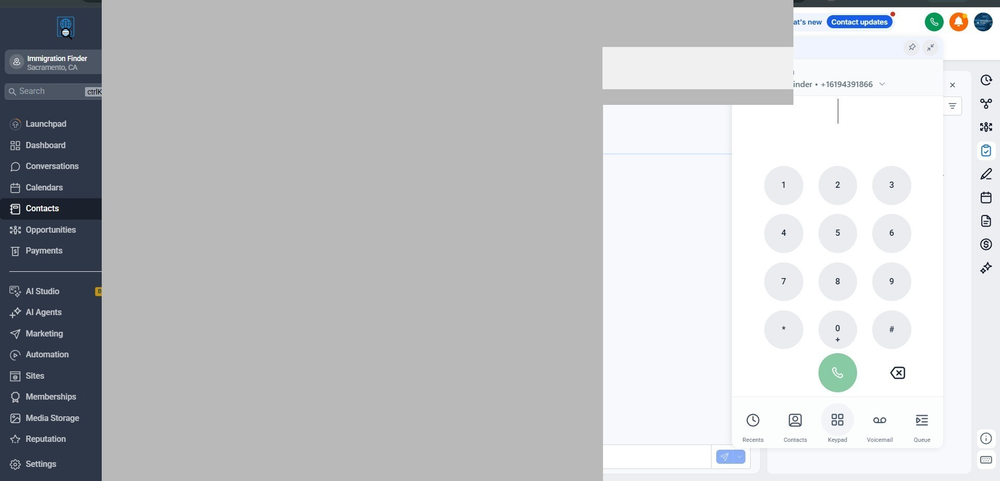
You will see five tabs at the bottom of the panel: Recents, Contacts, Keypad, Voicemail, Queue.
The Calling From field at the top shows which phone number you are calling from.
Figure 1 — The GHL Dialer with Keypad open. Green call button at the bottom dials the number.
NOTE
As you type a number on the Keypad, GHL automatically searches for a matching contact. If found, their name and details appear before the call connects.
The Keypad can also be used during a live call to navigate automated phone menus (IVR systems — e.g., 'Press 1 for billing').
2. MAKING AN OUTBOUND CALL Three Ways to Dial 2 Choose Your Dial Method
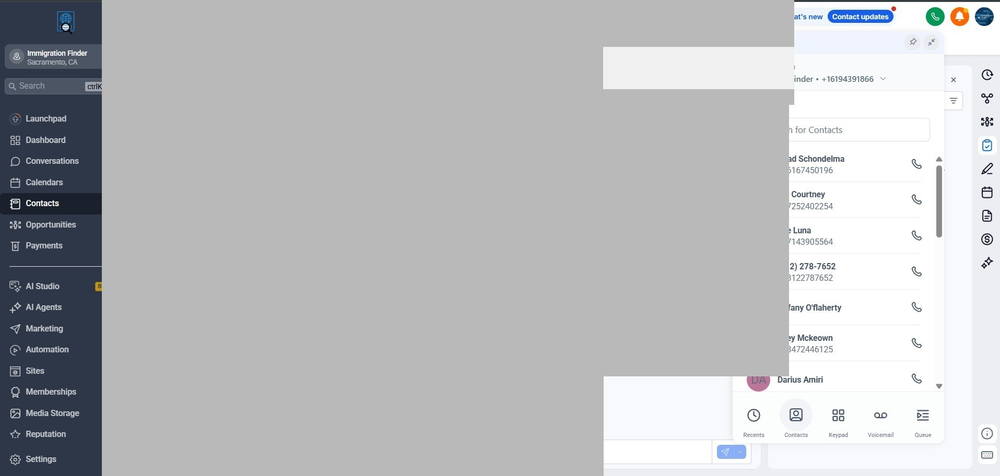
From Contacts tab: Search by name or number, then click the phone icon next to the contact.
From Recents tab: Find a previous call and click it to redial.
From Keypad: Type the full phone number (including country code, e.g. +1 for US) and press the green call button.
Figure 2 — Contacts tab. Search for any contact and click the phone icon to call them directly.
In-Call Controls 3 Use the Call Control Panel
Once a call connects, a control panel appears with the following options:
Button What It Does When to Use It Mute Silences your microphone When checking information without putting the caller on hold Hold Pauses the call (caller hears hold music) Before transferring or stepping away briefly Record Starts recording the call Per your firm's recording policy — activate at the start Blind Transfer Transfers directly without introduction When the recipient already knows the context Warm Transfer You speak to recipient first, then transfer For new or complex cases — always preferred IMPORTANT
Always use Warm Transfer for new clients or complex cases so the receiving person has context before speaking.
Recording must be activated at the beginning of a call. Audio before activation cannot be recovered.
3. AFTER THE CALL — NOTES AND TAGS Review Your Recent Calls 4 Check the Recents Tab
Click the Recents tab at the bottom of the Dialer panel.
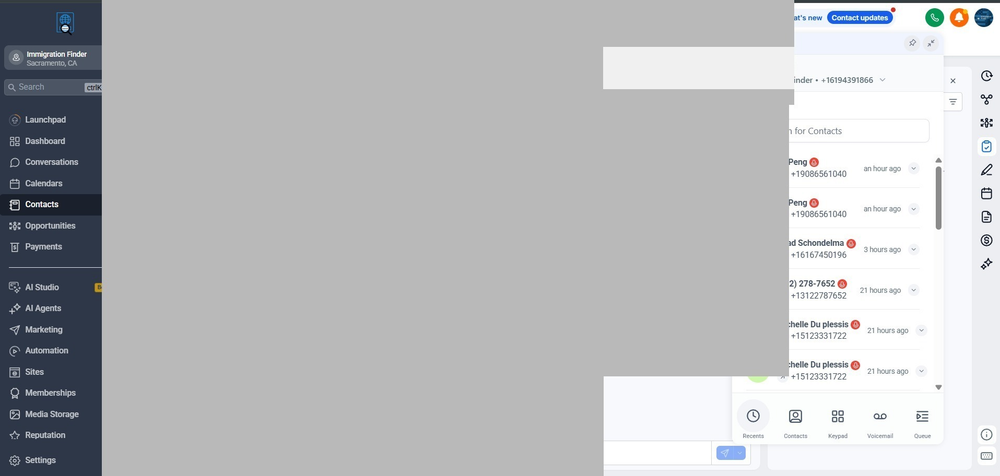
You will see a list of all recent inbound and outbound calls with contact names, numbers, and timestamps.
Outbound calls show an arrow pointing up. Inbound calls show an arrow pointing down.
Click any call to expand options: call back, add note, or view the contact.
Figure 3 — Recents tab. View all recent calls, redial, or add a note directly from this screen.
Log Notes and Apply Tags 5 Add a Note After the Call
After hanging up, find the call in the Recents tab and click the note icon.
Type a brief summary: what was discussed, any next steps, or key client information.
Click Save. The note is automatically saved to the contact's profile in GHL — no need to open the contact separately.
6 Tag the Contact
From the Recents screen, click the tag icon next to the call.
Select or type the appropriate tag (e.g., Initial Consultation, Follow-Up Needed, Active Client).
Tags update the contact's profile instantly and can trigger automated workflows in GHL.
TIP
Add your note within 5 minutes of the call while details are fresh.
Use consistent tag names agreed upon with your team — inconsistent tags break automations and reports.
4. MISSED CALLS AND TEXT MESSAGING The Conversations Tab 7 Check for Missed Calls and Auto Text Replies
GHL can automatically send a text message to any caller you miss.
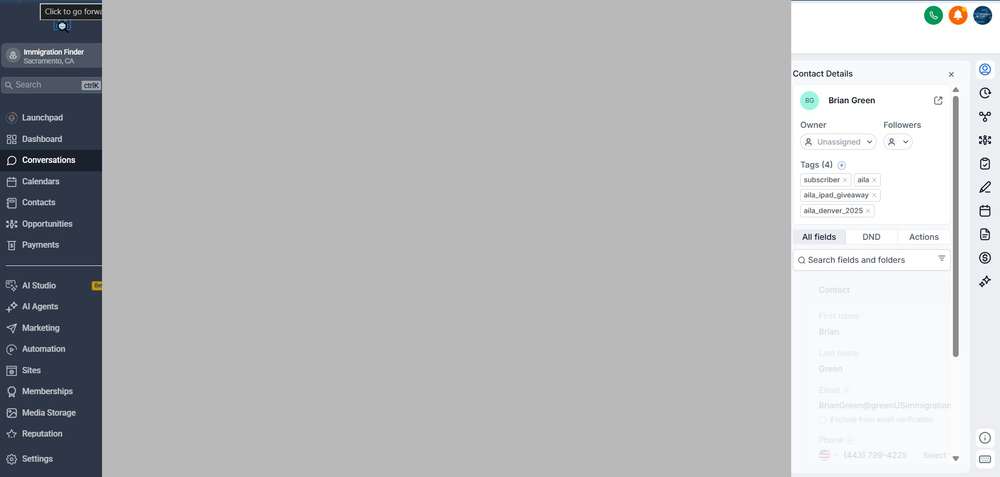
Click Conversations in the left sidebar to see all incoming and outgoing messages.
Find the contact's conversation thread — the auto-reply will appear there.
You can respond directly in the thread to continue the conversation via text.
Figure 4 — Conversations tab. All SMS, email, and call activity per contact in one unified inbox.
8 Continue Communication by Text
Open the contact's conversation thread.
Type your reply in the message box at the bottom and hit Send.
Use texting to confirm appointments, share basic information, or schedule a callback.
All messages are automatically logged in the contact's history.
NOTE
The Conversations tab unifies SMS, email, and web chat in one thread per contact.
If Missed Call Text-Back is not working, ask your GHL administrator to enable it under Settings > Phone Numbers.
5. RECEIVING AN INCOMING CALL When a Call Comes In 9 Answer the Call
When someone calls your GHL number, a notification pop-up appears on your screen.
If the caller is a saved contact, their name and any tags appear immediately.
Click the green Answer button to connect, or red Decline to send to voicemail.
10 After the Incoming Call
Go to the Recents tab and add a note immediately.
Apply the correct tag to reflect the outcome of the call.
If the caller was not in your contacts, verify the auto-created contact record and fill in any missing details.
TIP
If you miss an incoming call, GHL logs it in Recents. Check Conversations for any automatic text-back sent to the caller.
6. QUICK REFERENCE — DIALER FEATURES AT A GLANCE Feature Where to Find It What It Does Keypad Keypad tab — bottom of Dialer Dial any number manually. Auto-searches contacts as you type. Recents Tab Recents tab — bottom of Dialer Shows last inbound and outbound calls. Add notes or redial from here. Contacts Tab Contacts tab — bottom of Dialer Browse or search your full contact list to initiate a call. Voicemail Voicemail tab — bottom of Dialer Listen to voicemails left by callers. Add Note Click call in Recents > note icon Saves a call summary directly to the contact's profile. Add Tag Click call in Recents > tag icon Labels the contact for segmentation and automation triggers. Mute In-call control panel Silences your mic without ending the call. Hold In-call control panel Pauses the call with hold music. Record In-call control panel Records the call audio, stored in the contact's history. Blind Transfer In-call control panel Sends the caller directly to another person. Warm Transfer In-call control panel Lets you brief the recipient before connecting the caller. Conversations Left sidebar in GHL Unified inbox: SMS, email, and chat per contact in one thread. 7. TROUBLESHOOTING — COMMON ISSUES Problem Likely Cause Fix No audio — caller cannot hear you Browser microphone permission is blocked Click the lock icon in your browser address bar > allow microphone access > refresh. Call does not connect / drops Unstable internet or VoIP blocked by network Test your connection. Ask IT to whitelist GHL VoIP traffic if on a corporate network. Dialer pop-up does not appear Browser notifications blocked or GHL tab is closed Allow notifications for GHL in browser settings. Keep the GHL tab open. Cannot find a contact while dialing Contact not saved or phone format differs Check the contact exists and their number includes the country code (+1 for US). Notes are not saving Session timeout or connectivity issue Refresh, log back in, and re-enter the note. Copy text first to avoid losing it. Record button is greyed out Recording not enabled on your GHL sub-account Contact your GHL administrator to enable under Settings > Phone Numbers. Missed Call Text-Back not sending Feature not configured on the phone number Ask your GHL administrator to enable under Settings > Phone Numbers. 8. DAILY CHECKLIST BEFORE YOUR FIRST CALL □ GHL is open and you are logged in □ Headset or microphone is connected and working □ Your contacts are up to date in GHL DURING EVERY CALL □ Activate recording if required by your firm □ Use Hold before transferring — never transfer without it □ Use Warm Transfer for new or complex clients AFTER EVERY CALL □ Add a note within 5 minutes of hanging up □ Apply the correct tag to the contact □ Create a follow-up task or appointment if needed MISSED CALLS □ Check the Conversations tab for auto-text replies □ Respond or call back within your team's agreed timeframe □ Log any callback attempt in the contact's profile 9. GLOSSARY — KEY TERMS Term Definition Blind Transfer Transferring a live call directly to another person without first speaking to them. Warm Transfer Transferring a live call after first speaking to the recipient to introduce the caller. Dialer The built-in phone system inside Go High Level used to make, receive, and manage calls. Hold A function that pauses a live call. The caller hears hold music while you step away. IVR Interactive Voice Response — automated phone menus callers navigate using their keypad. Missed Call Text-Back An automatic SMS sent to a caller when their call goes unanswered. Mute Silences your microphone during a call without putting the caller on hold. Tag A label applied to a contact in GHL to categorize their status. VoIP Voice over Internet Protocol — technology that allows phone calls over an internet connection. Conversations Tab A unified inbox inside GHL that shows all communication with a contact in a single thread. Provided by Immigration Finder | GHL Dialer Guide v1.0 | June 2026 | Questions? Contact your Immigration Finder account manager.