IFCRM | Integrations - How to integrate tools and the CRM
-
1How to integrate tools and the CRM
GO HIGH LEVEL
Integrations Guide
How to Connect External Tools to Your CRM
Version 1.0 | June 2026 | Provided by Immigration Finder
Platform Go High Level (GHL) Module Settings > Integrations Applies To All staff responsible for connecting external tools to GHL Prepared By Immigration Finder OVERVIEW This guide covers how to connect external tools — Google, Facebook, LinkedIn, WhatsApp, TikTok, and more — to your Go High Level CRM. Integrations allow client data, leads, appointments, and communications to flow automatically into one central system, eliminating manual data entry and reducing missed follow-ups.
1. WHY INTEGRATIONS MATTER FOR YOUR FIRM Benefit What It Means in Practice Centralized client data Every call, email, ad lead, and appointment lands in one contact record in GHL. Automated lead capture Leads from Facebook, Google, or LinkedIn ads are automatically created as contacts in GHL. Unified calendar Google Calendar sync prevents double-booking and lets clients self-schedule appointments. Centralized communication WhatsApp, email, and SMS conversations visible in a single inbox per contact. Scalable automation Build workflows that trigger emails, texts, or tasks automatically based on client actions. 2. BEFORE YOU START GHL Admin Access You must be logged in as an Administrator on your GHL sub-account. Account Credentials Ready Have the username and password for each platform you plan to connect. Active Accounts The external accounts must be active and in good standing. Browser Requirements Use Google Chrome or Microsoft Edge. Disable pop-up blockers for the GHL domain. Two-Factor Authentication Have your phone or authenticator app nearby if 2FA is enabled on your accounts. 3. HOW TO CONNECT A PLATFORM — STEP BY STEP Universal Connection Process — Applies to All Platforms 1 Open Settings
Log in to your Go High Level account.
In the bottom-left corner of the screen, click the Settings icon (gear icon).
This opens the main Settings panel for your sub-account.
2 Navigate to Integrations
In the Settings menu, scroll down and click Integrations.
You will see a grid of all available platforms you can connect to GHL.
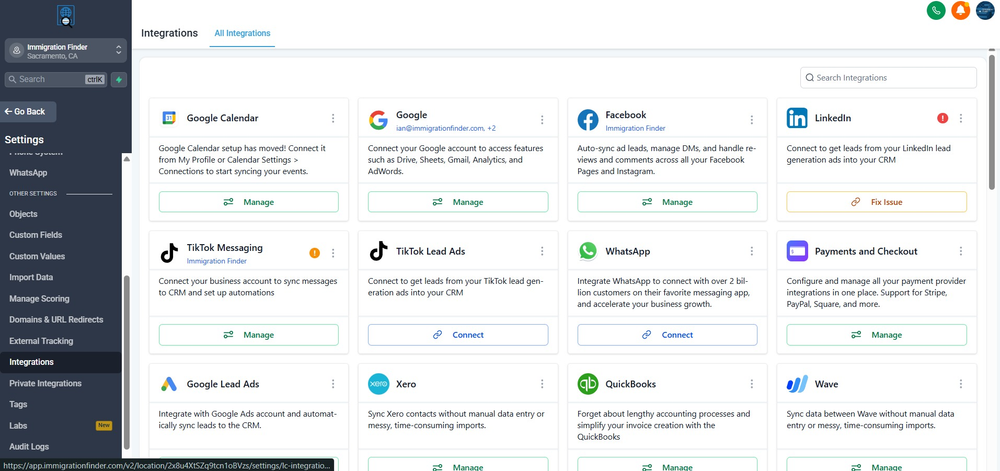
Platforms already connected show a Manage button. Platforms not yet connected show a Connect button.
Figure 1 — Settings > Integrations. Platforms showing 'Manage' are already connected. 'Connect' means not yet linked.
3 Select Your Platform and Authorize
Click the Connect button next to the platform you want to link.
A pop-up window will appear asking you to log in to that platform.
Enter your credentials and complete any two-factor authentication steps.
Review and accept the permission requests shown — GHL needs these to sync data.
Click Allow, Continue, or Authorize to confirm.
4 Verify the Connection
Once authorized, the pop-up closes and you return to the Integrations page.
The platform status should now display as Connected (green indicator) or show a Manage button.
If you see an error, disconnect and reconnect — confirm your account has Admin-level access.
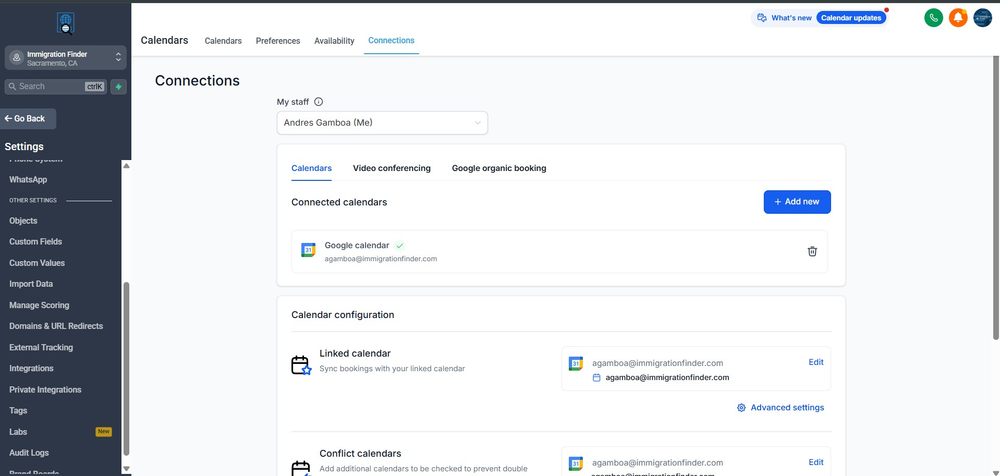
Figure 2 — A connected integration shows a green checkmark and the connected email address.
NOTE
The connection process is secure. GHL uses OAuth — your password is never stored by GHL directly.
If a pop-up does not appear when you click Connect, check your browser for a blocked pop-up notification and allow it.
4. PLATFORM-BY-PLATFORM GUIDE Platform Category Key Benefit for Your Firm Admin Required? Google Email / Calendar / Ads Unified inbox, calendar sync, Google Ads lead capture Yes Facebook / Meta Ads / Social Auto lead import, Messenger inbox, ad audience sync Yes — Page & Ad Account Admin Instagram Social / DMs DMs managed inside GHL Conversations Via Facebook connection LinkedIn Ads / Social LinkedIn Lead Gen Form sync to GHL contacts Yes WhatsApp Business Messaging Two-way WhatsApp from GHL, automated messages WhatsApp Business account TikTok Ads Ads TikTok lead forms sync automatically to GHL Yes — TikTok Ads Admin Google Calendar Calendar Two-way sync for appointments and availability Via Google connection Outlook / Microsoft Email / Calendar Email and calendar sync for Microsoft 365 users Yes 5. HOW TO VERIFY A SUCCESSFUL CONNECTION Integration How to Verify It Is Working Any platform Go to Settings > Integrations — status should show Connected or a Manage button. Google Calendar Create a test appointment in GHL. Confirm it appears in Google Calendar within 1-2 minutes. Facebook Lead Ads Use Facebook's Lead Ads Testing Tool to submit a test lead. Confirm a new contact is created in GHL. Gmail Send a test email to a GHL contact. Open their profile and confirm the email appears in conversation history. WhatsApp Send a test WhatsApp message from GHL. Confirm it arrives on your phone and the reply appears in GHL. 6. TROUBLESHOOTING — COMMON ISSUES Problem Likely Cause Fix Connect button does nothing Browser is blocking the pop-up window Look for a blocked pop-up notification in the address bar and click Allow. Try Chrome if using another browser. Status shows error after connecting Incorrect credentials or insufficient permissions Disconnect, confirm your login is correct, and reconnect. Ensure your account has Admin-level access. Facebook leads not appearing in GHL Lead Ad form not mapped or connection lapsed Go to Settings > Integrations > Facebook and confirm the correct Ad Account and Page are selected. Google Calendar not syncing Wrong Google account or calendar permissions not granted Disconnect and reconnect Google, ensuring you select the correct account and grant full Calendar access. Integration disconnects after a few days OAuth token expired or password changed Reconnect the integration. Always reconnect GHL integrations after changing a password on an external platform. WhatsApp messages not sending WhatsApp Business account not approved or number not verified Check your WhatsApp Business Manager for pending approvals. Contact Meta support if account is restricted. 7. INTEGRATION SETUP CHECKLIST BEFORE CONNECTING □ Logged in to GHL as Administrator □ Credentials for each external platform ready □ Pop-up blocker disabled for GHL in browser □ Using Google Chrome or Microsoft Edge □ Two-factor authentication device nearby DURING CONNECTION □ Navigated to Settings > Integrations □ Correct platform selected □ Correct account selected (firm account, not personal) □ All requested permissions granted □ Connection confirmed as Connected (green status or Manage button) AFTER CONNECTING — VERIFICATION □ Google Calendar: test appointment syncs to Google Calendar □ Facebook: test lead appears in GHL contacts □ Gmail: test email appears in contact conversation history □ WhatsApp: test message sent and received successfully ONGOING MAINTENANCE □ Reconnect integrations after changing passwords on external platforms □ Review integration statuses monthly in Settings > Integrations □ Inform your GHL administrator of any account changes that may affect integrations 8. GLOSSARY — KEY TERMS Term Definition Integration A connection between GHL and an external platform that allows data to flow automatically between them. OAuth The secure authorization standard used by GHL integrations. Your password is never stored by GHL. Lead Gen Form A form hosted on Facebook, LinkedIn, or TikTok that captures a prospect's contact details. Workflow An automated sequence of actions in GHL triggered by a specific event — such as a new lead arriving. Connected status The green indicator in Settings > Integrations confirming a platform is successfully linked. Custom Audience A list of contacts in Facebook Ads built from your GHL contact data, used for retargeting ads. Two-Factor Auth (2FA) A security step requiring a second verification in addition to your password when logging in. Provided by Immigration Finder | GHL Integrations Guide v1.0 | June 2026 | Questions? Contact your Immigration Finder account manager.